
Studio tour
Studio is Keel's web dashboard. It runs on port 3000 of your server (http://localhost:3000 on the machine itself) and gives you one place to design tables, run SQL, manage users and files, deploy edge functions, watch scheduled jobs, read container logs and take backups, for every project on the server. This page walks through each part of the screen.
Signing in
Open Studio and sign in with your Studio account. The first one is the dashboard login from your .env file: KEEL_DASHBOARD_USERNAME (admin unless you changed it) and KEEL_DASHBOARD_PASSWORD. The installer prints the password when it sets Keel up. With two-factor authentication on, Studio then asks for the code from your authenticator app.
- A session lasts 12 hours, then Studio asks you to sign in again. Sign out ends the session on the server.
- Studio allows 10 failed sign-in attempts per address every 15 minutes (signing in successfully resets the count). After that it answers "Too many sign-in attempts. Wait a few minutes."
- Every Studio account has full access to every project. Treat the passwords like root passwords, and turn on two-factor.
Add people, change your password, set up two-factor and see where you're signed in under Account and security: see Accounts and sign-in.
These docs are served by Studio too, at http://<server>:3000/docs, and by the API at http://<server>:8000/docs, without signing in.
The header
From left to right:
| Item | What it does |
|---|---|
| keel. | The Keel logo. |
| Project switcher | Shows the current project. Click it to see every project with its database size, switch to another one, or use New project, Project settings, Account and security, Documentation and Sign out. Studio remembers the last project you opened in this browser. |
| Postgres label | The Postgres version and the server's name, for example "Postgres 17.6 on nas". The name comes from KEEL_HOST_LABEL, or from the host in KEEL_PUBLIC_URL. |
| Docs | Opens these docs in a new tab. |
| Find a table or column… | Opens the command palette (also ⌘K or Ctrl+K). Type to find tables and columns in the current schema, or run an action: Open SQL editor, New table, Users, Storage, Connect, New project, Documentation. |
| Connect | The API URL, the anon and service role keys, and the Postgres connection string, with ready-to-copy snippets (.env, JavaScript, psql, curl) and an AI agent prompt. See Connecting your app and Build with AI agents. Its Internet access button sets Keel's public address and runs a Cloudflare Tunnel. |
Creating a project
Choose New project in the project switcher (or in the palette). A project is a separate Postgres database with its own API keys, users and storage. Names:
- use lowercase letters, digits and dashes, start with a letter and end with a letter or digit,
- are 3 to 40 characters long, without two dashes in a row,
- can't be one of the reserved names (such as
api,auth,storage,studio,keelorpostgres).
The name becomes part of the API URL (http://<server>:8000/<project>), and the database is named after it with dashes turned into underscores (recipe-box uses recipe_box). See Limits for the full rules.
The schema canvas
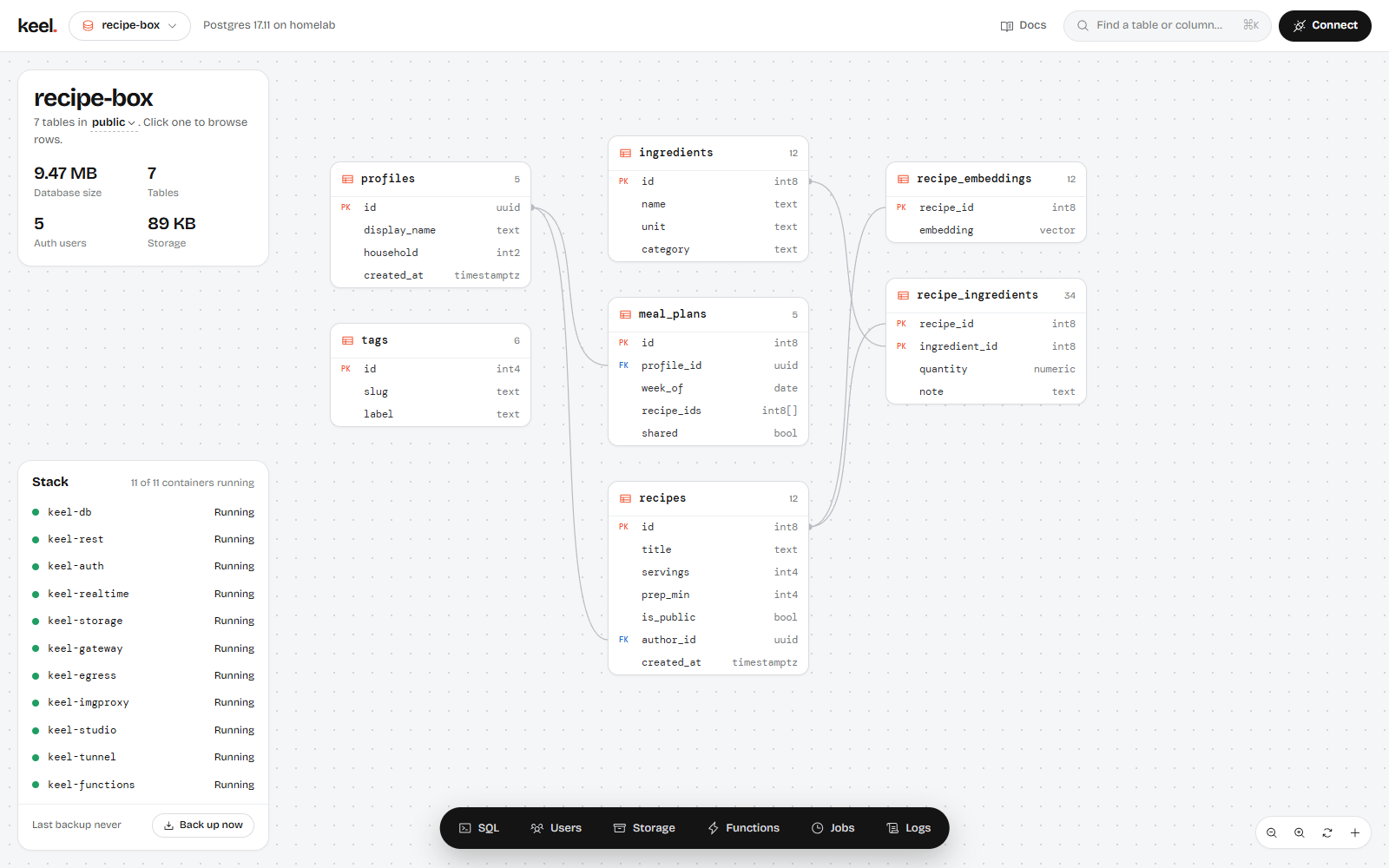
The middle of the screen draws the tables of the current schema (public by default) as cards:
- Each card shows the table name, its row count and up to 12 columns with their types.
PKmarks primary key columns andFKmarks foreign keys. A count starting with~is Postgres's estimate for a large table. - Views and materialized views are tagged view and mat. view. Tables with row level security switched off get a warning tag, RLS off.
- Lines connect foreign keys to the tables they reference. When a table is open, its lines are highlighted.
- Click a card to open the table drawer with its rows and policies.
You can drag cards to arrange them; the layout is saved in your browser, per project and schema. Drag the empty background to pan, and hold Ctrl or ⌘ while scrolling to zoom. The buttons in the bottom-right corner zoom out, zoom in, tidy the layout (back to the automatic arrangement) and create a new table.
A project without tables shows New table and Open SQL editor instead.
The side panel
The project card shows the project's name, how many tables are in the current schema, and four numbers: Database size, Tables, Auth users and Storage (the total size of uploaded files). Click the schema name (for example public) to look at another schema, such as auth or storage.
The stack card lists the containers of your Keel stack with their state: Running, Starting…, Unhealthy, Restarting, Paused or Stopped, and how many are running. Click a service to open its logs. The footer shows when the project was last backed up (click it to open the backups list) and a Back up now button that takes a backup of the current project right away.
The numbers refresh every 20 seconds and the stack every 10 seconds.
The dock
The bar at the bottom opens Studio's tools: SQL, Users, Storage, Functions, Jobs and Logs. Each opens a drawer on the right. Click the same button again, press Esc or use the close button to put it away.
SQL
A SQL editor for the current project's database, with saved queries, multiple statements and a results grid. Queries run as the Postgres superuser. See SQL editor.
Users
Everyone who has signed up to the project. Search by email, phone number or user ID, Add a user with a password, or Invite one by email. Without a mail server, Studio shows the invite link for you to send yourself. Click a user to see their sign-in methods, metadata and two-factor factors, send a Password reset link, Ban user or Delete user.
The gear icon opens Sign-in settings: the Site URL and allowed redirect URLs, sign-ups, email confirmation, anonymous sign-ins, password length, token lifetime, phone sign-in and SMS providers, two-factor authentication, sign-in providers (GitHub, Google, Discord, GitLab, Microsoft and OpenID Connect providers), and the project's mail server. See Managing users and Auth.
Storage
Your buckets and files. Create buckets (public or private, with an optional size limit and allowed file types), upload by dragging files onto the drawer or with Upload, create folders, and click a file to preview images, copy its public or signed URL, download or delete it. The gear icon opens the bucket's settings. See Storage.
Functions
Your edge functions. Create one in the browser with New function (or Upload folder to deploy a folder with an index.ts from your computer), then use the Code, Test, Logs and Settings tabs to edit and redeploy, send test requests, read console output and recent requests, and switch the JWT check. Secrets holds the environment variables for all of the project's functions. See Edge functions.
Jobs
The project's scheduled jobs with their schedule and whether they're paused, the Recent runs with their state (Succeeded, Failed) and output, and the Outgoing requests sent by webhooks and net.http_* with their responses. You create and change jobs with SQL (cron.schedule), in the SQL editor or a migration.
Logs
Container logs for each service in the stack, refreshed every few seconds, with a filter and Restart, Stop and Start buttons. See Logs and services.
Other drawers
Table
Opens when you click a table on the canvas or in the palette. It shows 50 rows at a time; click a column name to sort, use Filter to narrow the rows, and Insert row or click a row to edit or delete it (editing needs a primary key). Policies turns row level security and realtime on or off for the table and lists, creates and deletes its policies, with templates for common cases. The icons in the header open the table in the SQL editor or delete it. See Tables and data and Row level security.
New table
Opens from the canvas, the palette or the empty-project screen. Name the table, add columns (type, default, primary key, required, unique, and a reference to another table or to auth.users), and choose whether row level security (on by default) and realtime are switched on. Owner column adds a user_id column that defaults to the signed-in user.
Backups
Opens when you click the "Last backup" line in the stack card. It has two parts:
- Project backups: the current project's database backups (nightly and manual). Back up now, Download, Restore (you type the project name to confirm) or Delete them. They cover the database, not the uploaded files.
- Everything, encrypted: the full backups of the whole server, once
KEEL_BACKUP_PASSPHRASEis set. Change the nightly time and how many daily and weekly backups the bucket keeps, set up the Backup target (an S3-compatible bucket) with Test connection, run Back up everything now, see each backup's upload state, and copy the./keel restorecommand for one.
See Backups and restore.
Project settings
Open Project settings from the project switcher. It has:
- At the top, the project's details: the project and database names, when it was created, its size and user count, the API URL, and the Keel and Postgres versions.
- Realtime: Private channels only, which rejects public channels so every client has to pass your policies on
realtime.messages. See Private channels. - Defaults: Save current data as defaults keeps a copy of the rows in your tables, and Restore defaults puts every table back to it. See Defaults.
- Move from Supabase: Import from Supabase copies a Supabase project's tables, data, users, policies and files into this one. See Migrate from Supabase.
- Danger zone: Delete project drops the project's database, users and storage metadata after you type its name. Uploaded files stay in the storage folder.
Looking for email or OAuth settings?
Sign-in options, the mail server (SMTP), sign-in providers, SMS and two-factor settings are per project, under Users, then the gear icon (Sign-in settings).
On a phone
On screens narrower than 720 pixels, Studio switches to a single-column layout:
- The header has the logo, the project switcher and a round Connect button.
- The page lists the project's numbers, the stack as chips (tap one for its logs) and the schema as a list of tables, with a New table button.
- The dock at the bottom has SQL, Users, Storage and Functions. (Jobs isn't in the phone dock.) Container logs open from the stack chips.
- Drawers open as sheets from the bottom of the screen, and table rows are shown as cards.
Keyboard shortcuts
| Keys | Where | What it does |
|---|---|---|
| ⌘K / Ctrl+K | Anywhere | Open or close the palette |
| ↑ ↓, Enter | Palette | Move through the results and run the selected one |
| Esc | Anywhere | Close the palette, the project menu or the open drawer |
| ⌘↵ / Ctrl+Enter | SQL editor | Run the query, or only the selected text |
| Tab | SQL and function editors | Insert two spaces |
| Ctrl / ⌘ + scroll | Canvas | Zoom in and out |